

Email delivery
There are a number of ways to configure how your emails are delivered to your customers from Billingbooth.
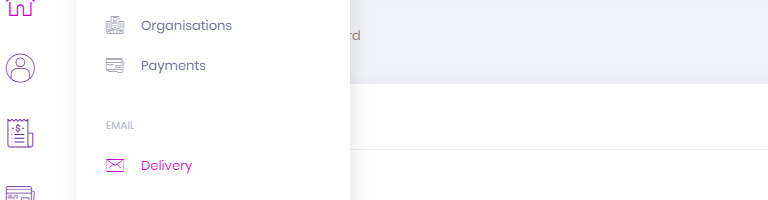
First, to navigate to the Email Delivery screen, simply click on the Settings menu item in the left-hand main navigation and click the Delivery link under the Email menu heading.
General
The first field is Use Default which is checked by default, whereby emails are delivered through Billingbooth's Mailgun setup.
Unchecking Use Default will reveal the additional options available to you under the Configuration heading explained below.
If you're going from one of the Configuration options to checking Use Default, you can click the Save changes button to submit your changes.
Configuration
The Method field is used to select the method of email delivery you wish to use and this article will go into the settings for each method below.
Method: Custom SMTP
This method is used if you want to use your own SMTP server to send out Billingbooth related emails to your customers.
| Field | Description |
|---|---|
| SMTP Server | The address of your SMTP server, for example: smtp.servername.com |
| Username | The username of the account you use to login to your SMTP server. |
| Password | The password of the account you use to login to your SMTP server, this along with your Username will be used to authenticate the connection to the SMTP server. |
| Port | The port you use to connect to your SMTP server. |
| TLS/SSL | Check this option if your SMTP server requires you to connect securely via TLS or SSL. |
Method: Office 365
Office 365 is often a method of email delivery that businesses already have set up, to utilise it with Billingbooth we've already taken care of the server settings Office 365 requires, you simply need to enter your Email address and Password you use to login to the Office 365 account that you wish to use to deliver emails.
::: note Ensure that your 365 login address is delegated to send emails on behalf of the email you have listed as the From address (found via Settings > Organisation, editing the applicable organisation and clicking the Email tab at the top-right of the screen). :::
Method: G Suite/Google Workspace
G Suite/Google Workspace is Google's alternative to Office 365 and just as with the Office 365 settings, all we require is for you to enter the Email address and Password you use to login to the G Suite/Google Workspace account that you wish to use to deliver emails.
::: note Ensure that your G Suite/Google Workspace login address is delegated to send emails on behalf of the email you have listed as the From address (found via Settings > Organisation, editing the applicable organisation and clicking the Email tab at the top-right of the screen). :::
Method: Mailgun
For this method, please get in touch with us so we can help you set up everything ready to use your own Mailgun setup in order to deliver Billingbooth related emails.
The one and only field here is the Domain field where the sub-domain you are using for Mailgun is entered.
Testing your configuration
Before you save your configuration, you may want to test it to see if everything is in working order.
To do so, first click the Test your settings button. This will pop up a modal window where you can enter a Test email address to send a test email to by clicking the Test button.
If your configuration is working, the Status will read Success, otherwise it will display the error the SMTP client returns.
Finishing up
For any of these methods, once you're happy with your settings, click the Save changes button to submit your changes.