

Configuration of Customer Access File Service
The Customer Access file service enables your customers to access CDR and SDR files via SFTP, either via a program such as FileZilla or WinSCP, or hooked into existing billing systems.
In order to do this, the file service first needs to be enabled and a series of simple steps need to take place.
Set up
To begin configuration of your customer web portal, you will need to head over to Settings -> Customer Access, then in the File Service section click the Create button. You will be faced with the following create wizard step:
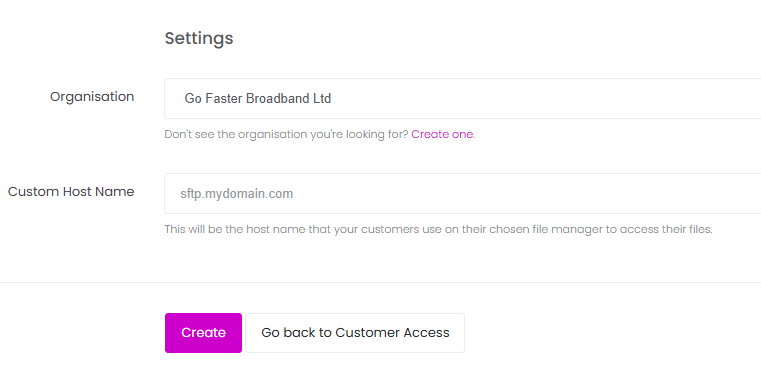
The first step in setting up the Customer Access file service is selecting the Organisation the file service belongs to and then choosing the domain that will be used for your customers to access the file service. This should be something simple and short that your customers can remember, commonly this would be a sub-domain of your main organisation's domain, such as ftp.mycompany.com.
You will need to have DNS control over the domain/sub-domain so you can proceed to the next step:
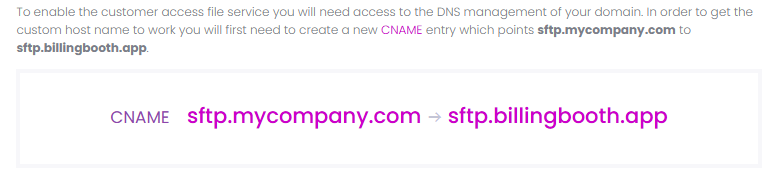
Before completing the setup process, you will need to create a new DNS record as per the instructions provided. To do this you will need to access your domain's host and they should provide you with some kind of control panel that will allow you to add the record. The following record will need to be added:
| Type | Name | Target |
|---|---|---|
| CNAME | your.subdomain.com | sftp.billingbooth.app |
If you are using a web proxy of some kind, such as Cloudflare, please ensure the CNAME record is not proxied in any way and points directly to customers.billingbooth.app
Once this record has been created, you can then complete the setup.
Next steps
Once the Customer Access file service is set up, the next step is to configure the user access to the file service.